Use the canvas
The infinite canvas is your main working area. You can quickly zoom in and out, and pan around to explore different parts of your application logic.
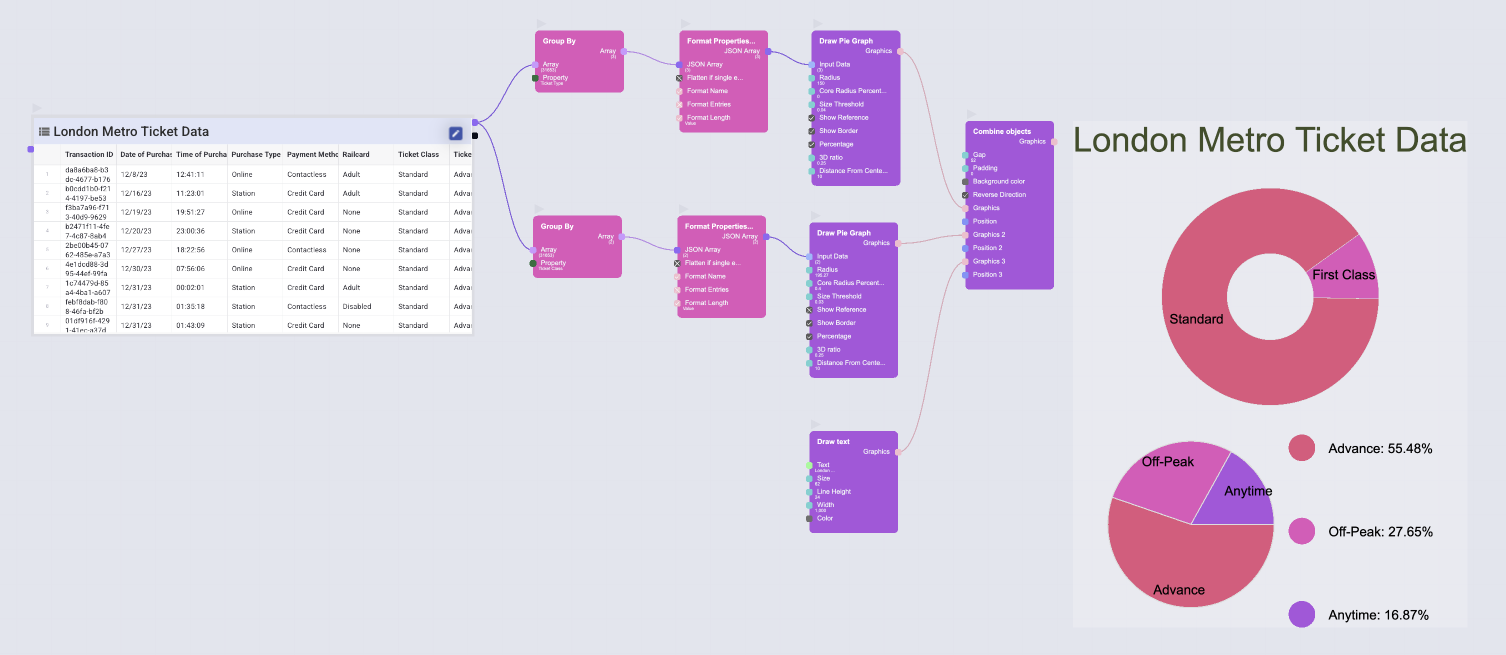
Navigate the canvas
Touch gestures work on their own. For a mouse or a trackpad we try to auto detect which one you are using, but you can always manually switch:
Switch gesture mode
- Gesture mode: Right-click the canvas to set the gesture mode (Mouse/Trackpad)
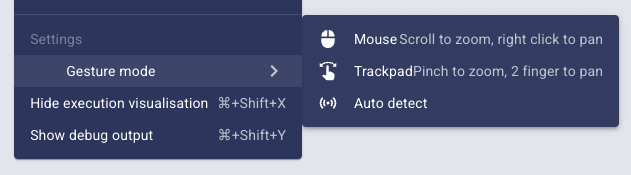
Using the mouse
- Zoom: Mouse wheel
- Pan: Right click + drag
Using the trackpad
- Zoom:
- Pinch gesture
- OR
Ctrl+ 2 finger movement
- Pan:
- 2 finger movement
- OR right click + drag
Using touch
- Zoom: Pinch gesture
- Pan: Drag with one finger
- Open a menu: Press and hold a node, a socket or the canvas
- opens the same menu a right click would open in that spot
- Find node: Double tap the empty canvas
info
Press and hold needs a window at least 900px wide. In the compact view the canvas is for reading: you can pan and zoom it, but not select, move or connect nodes.
Using keyboard shortcuts
- Zoom in:
Ctrl+=key - Zoom out:
Ctrl+-key - Reset Zoom:
Ctrl+0key
Learn more about Keyboard Shortcuts