Create and use macros
Macros are reusable node groups that:
- Encapsulate complex functionality into a single node
- Can be reused across your application
- Allow for abstraction and organization of your node graph
- Make your canvas cleaner and more manageable
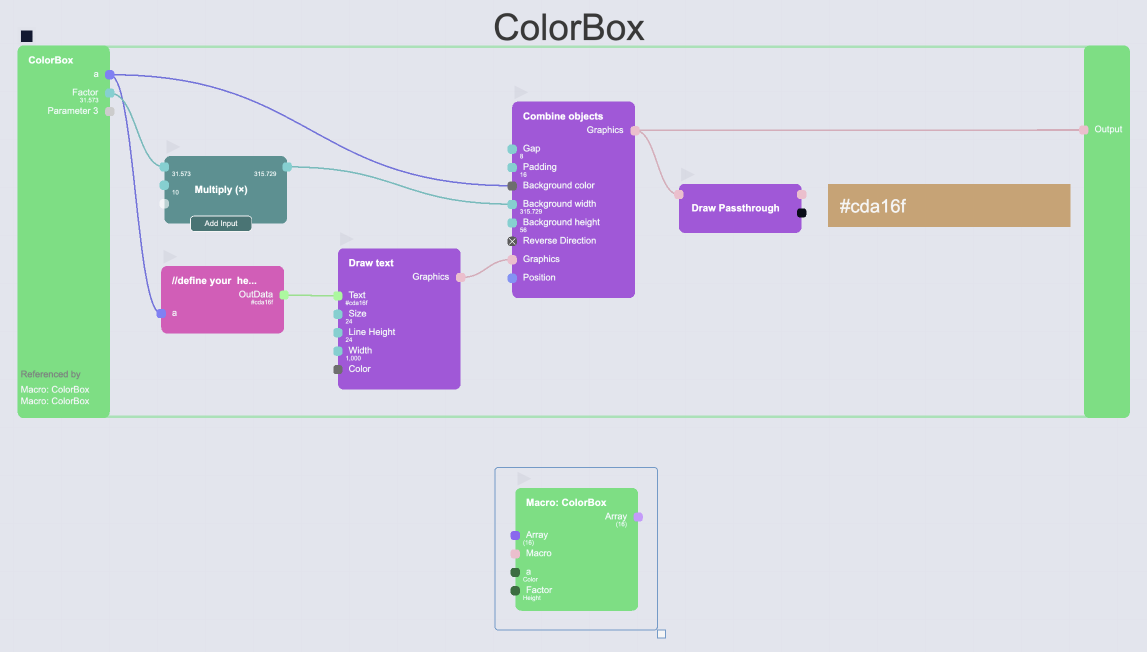
You can use macros to create:
- Reusable data processing pipelines
- Custom visual components
- Interactive widgets
Creating a Macro
Extract from existing nodes
- Select multiple nodes you want to include in the macro
- Right-click and select "Extract to macro" or press
Shift+M
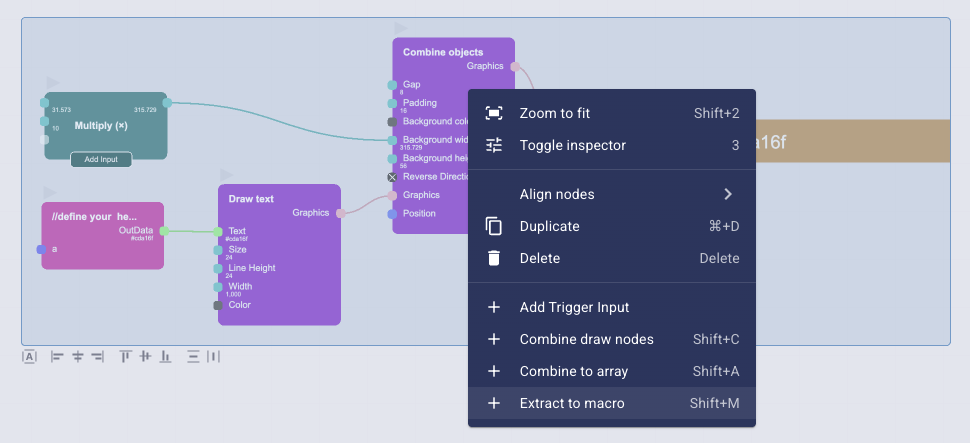
- The selected nodes are framed by a new macro node
- An "Execute Macro" node is created referencing the new macro
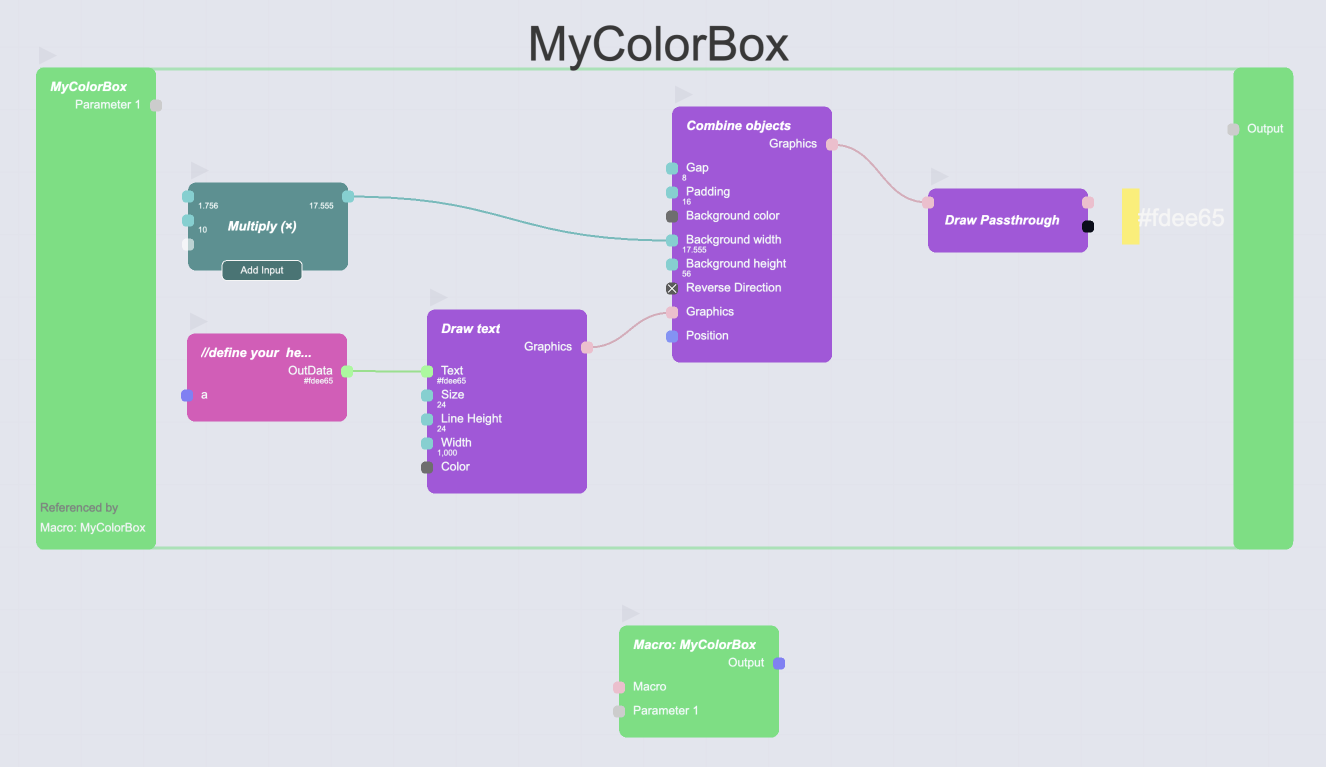
- Connect inputs and the output to define the macro's interface
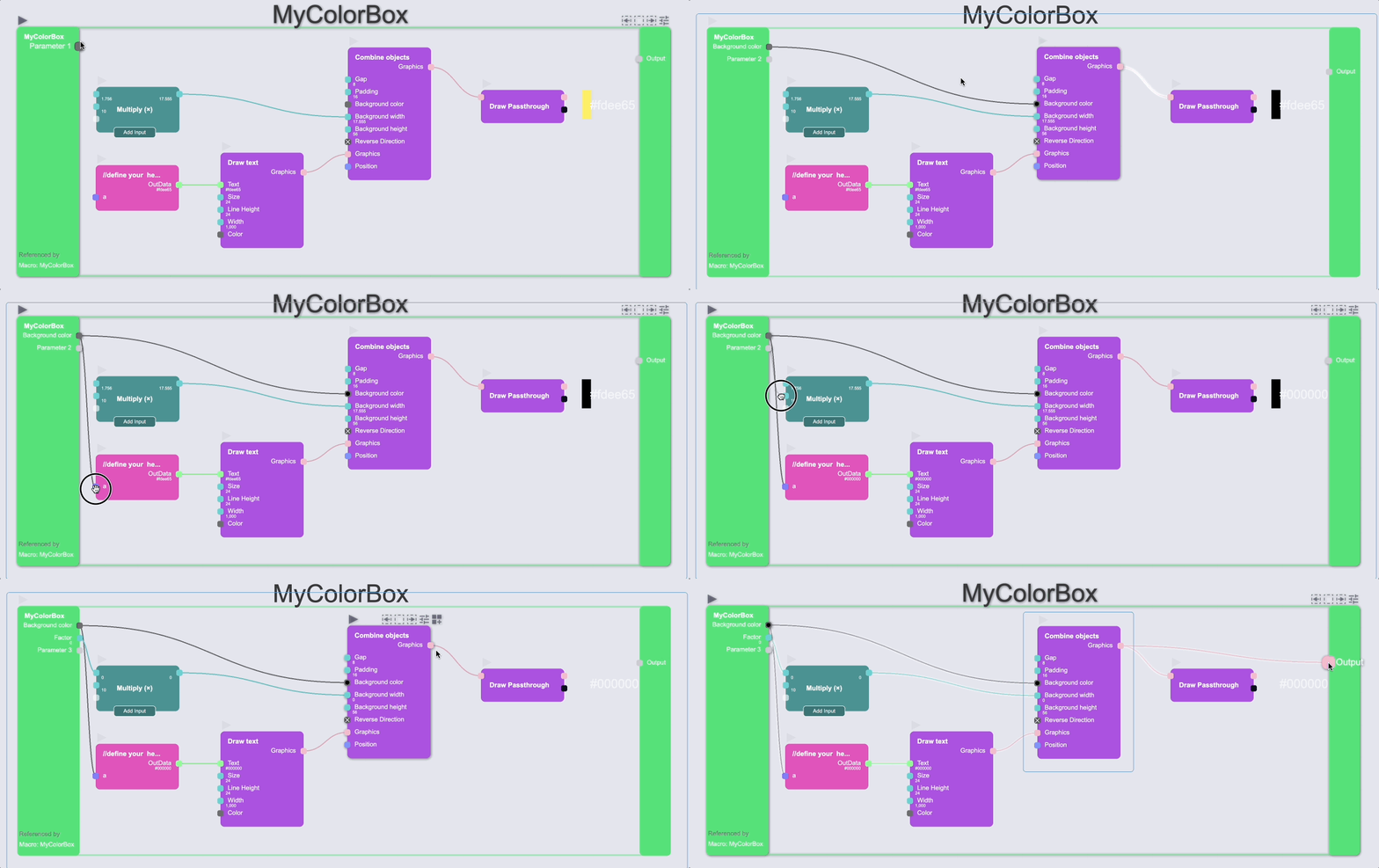
Create a new macro from scratch
- Add a "Macro" node from the node search
- Optionally - Name your macro in the node inspector
- Add/Move the nodes inside the macro
- Connect inputs and the output to define the macro's interface
Using Macros
Macros can be used like any other node in your graph. You can either
- reference them directly with an "Execute Macro" node for single operations
- runs your macro once with the provided inputs
- reference them in a "Map Execute Macro" node for batch operations
- runs your macro multiple times, once for each item in the input array
Use an execute macro node
To use a macro you've created:
- Add an "Execute Macro" node from the node search
- In the node inspector, select your macro name
- Connect inputs and use outputs as with any other node
- In the node inspector, select your macro name to reference it
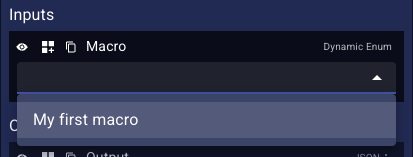
tip
The node list also shows "Execute Macro" nodes which are already linked to your macro.
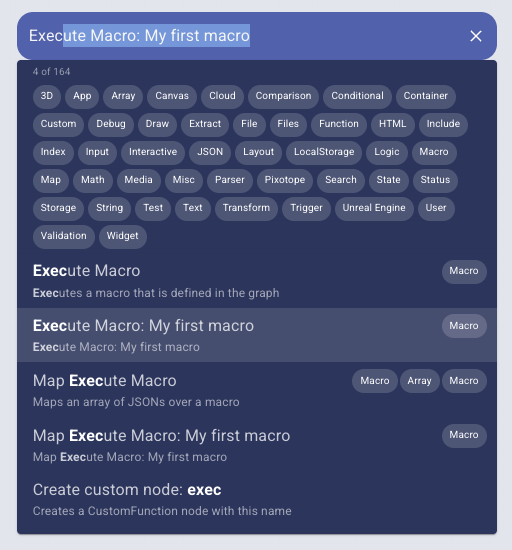
Use a map execute macro node
To use a macro for batch processing:
- Add a "Map Execute Macro" node from the node search
- In the node inspector, select your macro name
- Connect your input array to the "Array" input
- Select the input sockets and map them to a property of your input array
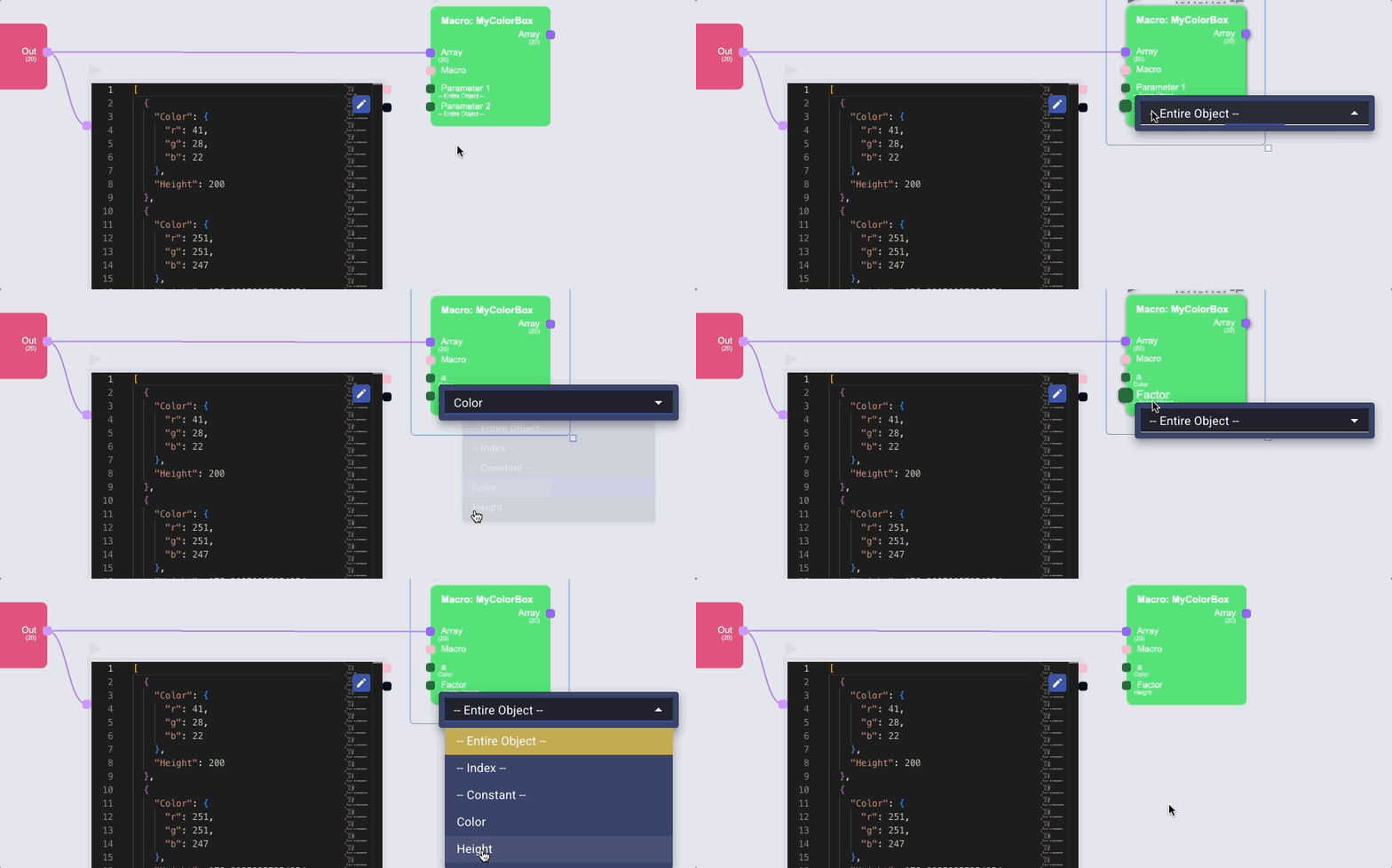
Calling Macros from Code
Custom Function Node
In a Custom Function node (with "Main Thread" enabled), you can call macros using the macro() function:
const result = await macro('myMacroName', arg1, arg2);
HTML Renderer and IFrame Renderer Nodes
In HTML and IFrame Renderer nodes, you can call macros in two ways:
Handlebars helper (evaluated at render time):
JavaScript (for runtime calls like onclick):
<button onclick="macro('myMacroName', arg1, arg2).then(r => console.log(r))">
  Run Macro
</button>