Use the inspector
The inspector allows you to:
- View and edit nodes and their properties
- View and edit widget's layout properties
- Edit app settings
Open the Inspector
- Press
3to show/hide the inspector panel - OR click the inspector icon in the top right corner
- OR click the inspector icon in the top right on any node

Node list
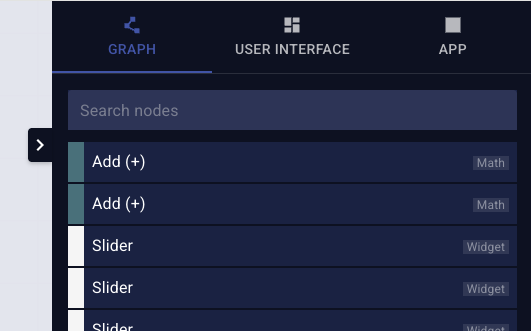
- Select the "Graph" tab in the inspector
- Unselect any node in the graph
A list of all nodes in your app are shown
- Click on a node to bring it into focus
- Double-click a node to select it
Node inspector
- Select the "Graph" tab in the inspector
- Select a node
Rename a node
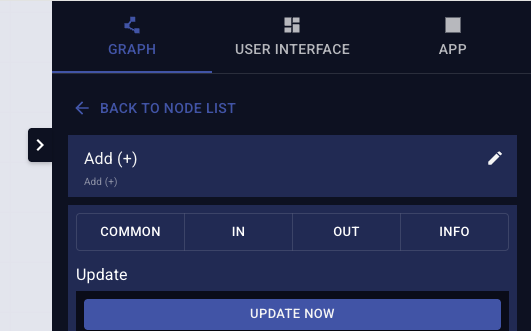
- Click on the node name at the top of the inspector
- Type the new name
Filter node properties
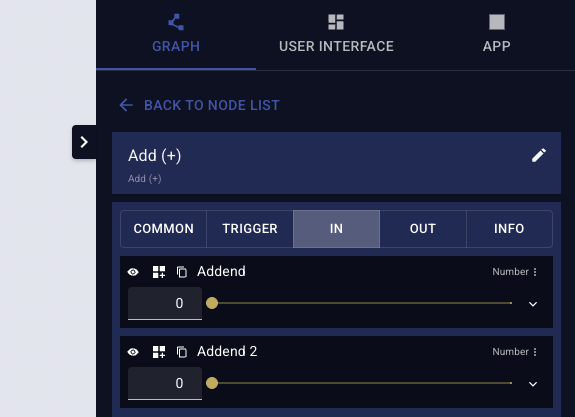
Then node properties are organized into the following sections:
- COMMON: Edit the update behavior of the node
- Learn more about Planning the execution logic
- TRIGGER: Show and edit trigger sockets
- Visible only if the node has trigger sockets
- IN: Show and edit input sockets
- OUT: Show and edit output sockets
- INFO: Show the node's description and its config
- Click on the section title to filter that section
- Click again to unfilter
Change node properties
The socket inspector allows you to:
- Toggle the socket's visibility on the canvas
- Add the socket control widget to the user interface
- Copy the value to the clipboard
- Change the socket's data type
- Value editor appropriate for the socket's data type
Toggle socket visibility
- Click the eye icon next to a socket to hide/show it
info
Connected sockets cannot be hidden. Remove the connection first.
Add socket controls to the user interface
- Click the "Add to user interface" icons
- The user interface is opened (if not already) and switched to edit mode
- The socket's control widget is added
info
You can also Shift+Click on a socket to add it to the user interface
Copy socket value
- Click the copy icon next to a socket to copy its value to the clipboard
Change socket data type
- Click on the socket's data type label
- Select a new data type from the dropdown
Learn more about Sockets and data types
Edit socket value
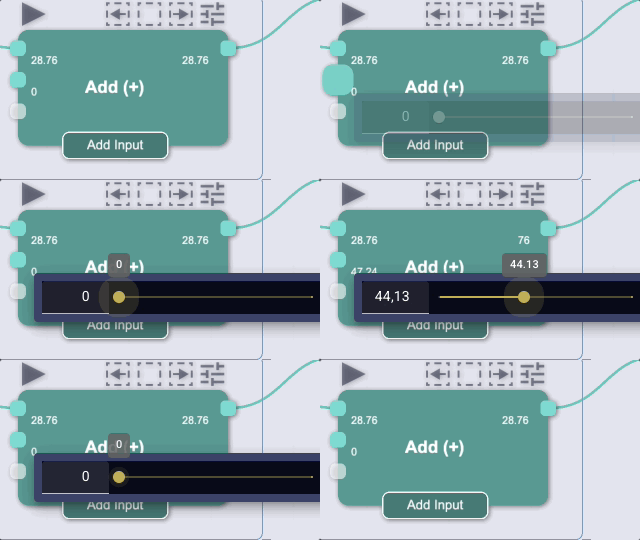
Depending on the socket's data type, an appropriate value editor is shown.
Edit using the floating inspector
- Click on any socket on the graph to open the floating inspector
Click outside the floating inspector or press Esc to close it.
User interface inspector
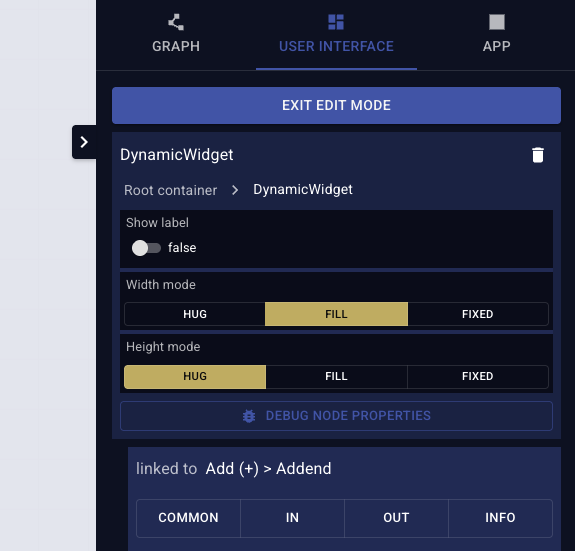
- Select the "User interface" tab in the inspector
- Enter edit mode by pressing
Eor clicking the edit icon in the top left toolbar - Select a widget in the user interface
The user interface inspector shows:
- the widget's layout properties
- the linked node and its properties
- shown only for dynamic widgets
Learn more about Building User Interfaces
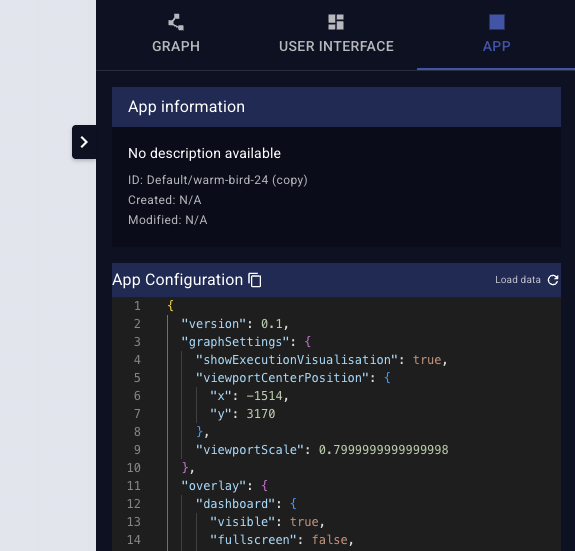
App inspector
- Select the "App" tab in the inspector
It shows
- the app's information
- the app's configuration